Constant context switching—jumping between tools and repetitive tasks—used to break my focus and slow me down. That changed when I started using Raycast daily; its powerful features, rich third-party integrations, and easy customization have replaced many of the small utility apps I relied on. While Raycast does offer impressive AI tools, today I want to share some small habits and tips that have truly streamlined my workflow and kept me in the creative zone as a product designer.
Use Raycast as Color Conversion
➡️ Extension Link: Built-in, no installation needed

Raycast is incredibly handy for color conversion. It recognizes major formats—you can simply paste in a color, and it will display a preview. By pressing “Enter” (“Copy color as”), you can choose from different color spaces such as HEX, RGBA, HSL, UIColor, and more. It even supports OKLCH (see my previous article on introducing OKLCH).
Beyond colors, Raycast handles many other conversions, including time zones, pixels to rem units, and currencies, among others. There’s also a standalone color picker app available, but I usually stick with Figma’s built-in tool.
Use Raycast to generate Lorem Ipsum
➡️ Extension Link: https://www.raycast.com/AntonNiklasson/lorem-ipsum
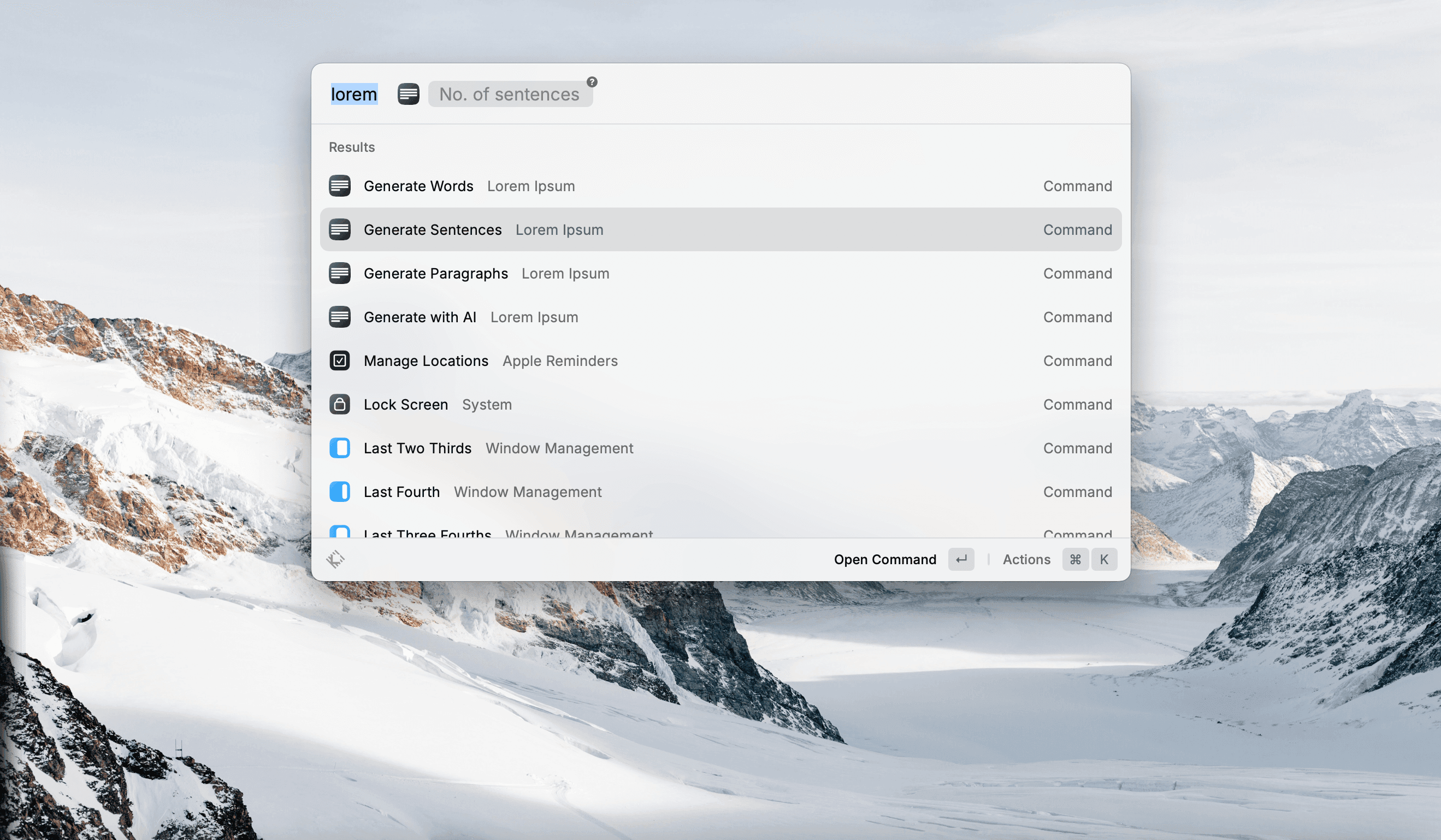
Even though Figma has come with AI function draft copy (Rewrite and Create Content), but nothing beats Lorem Ipsum, and the best of this extension, it can specify the length of content that you need. 10 words, 2 setences, 3 paragraphs? It can get it done and copy to your clipboard without opening any app.
Use Raycast to quick download SVG logo (Svgl)
➡️ Extension Link: https://www.raycast.com/1weiho/svgl
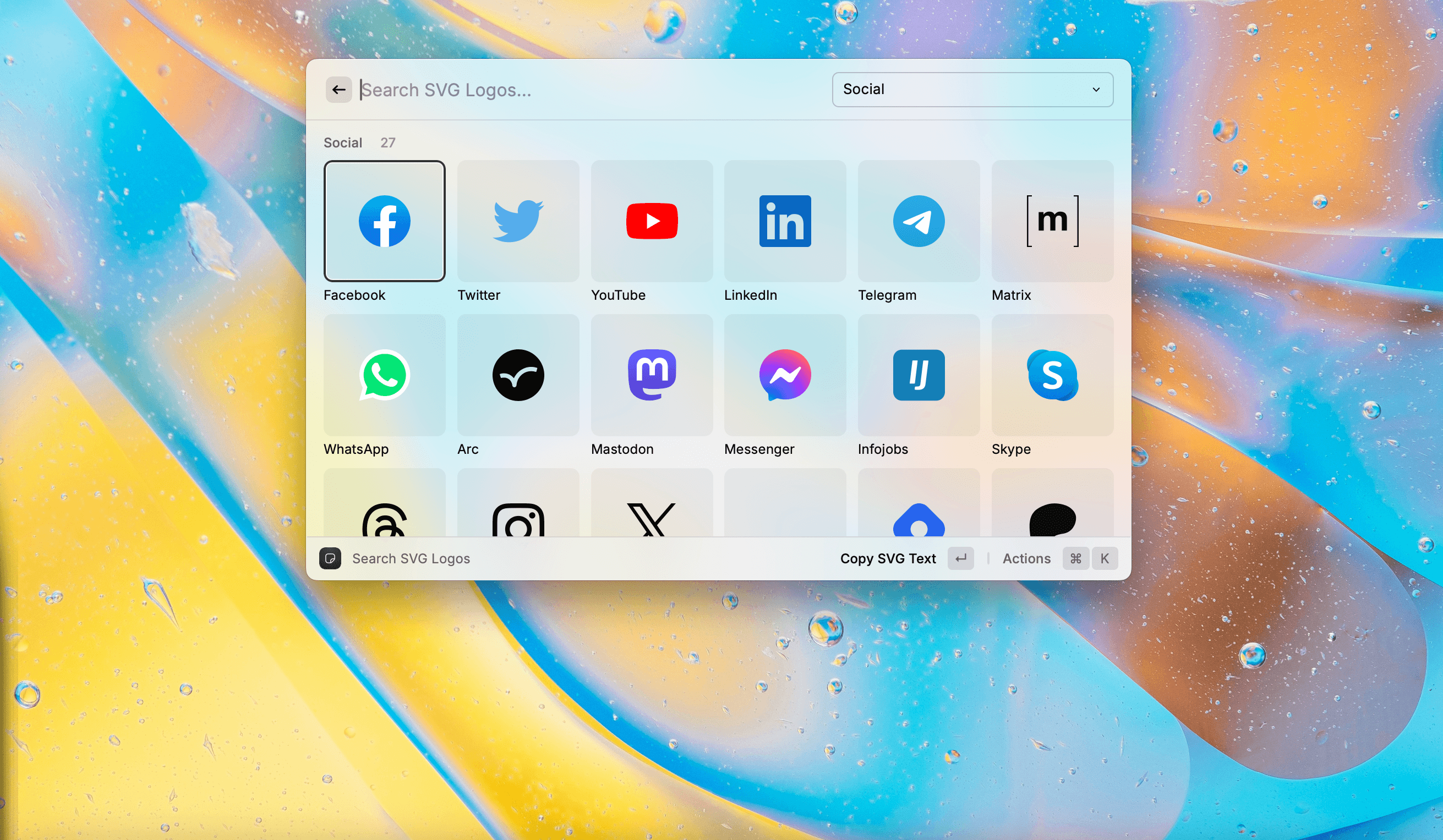
Are you tired of searching for the latest lossless social icons on Google for the 100th time? There’s good news: SVGL is an open-source library loved by developers and packed with integrations. Just type “SVGL” in Raycast to instantly search for any SVG logo you need. You can copy the icon as SVG text (which works perfectly in Figma) or as other file types, such as TypeScript, JavaScript, or Svelte files. SVGL offers excellent support for social media, dev tools, and crypto icons.
One limitation to note: SVGL provides official logo designs only. If you’re looking for outline or other style variants, you’ll need to check other icon libraries.
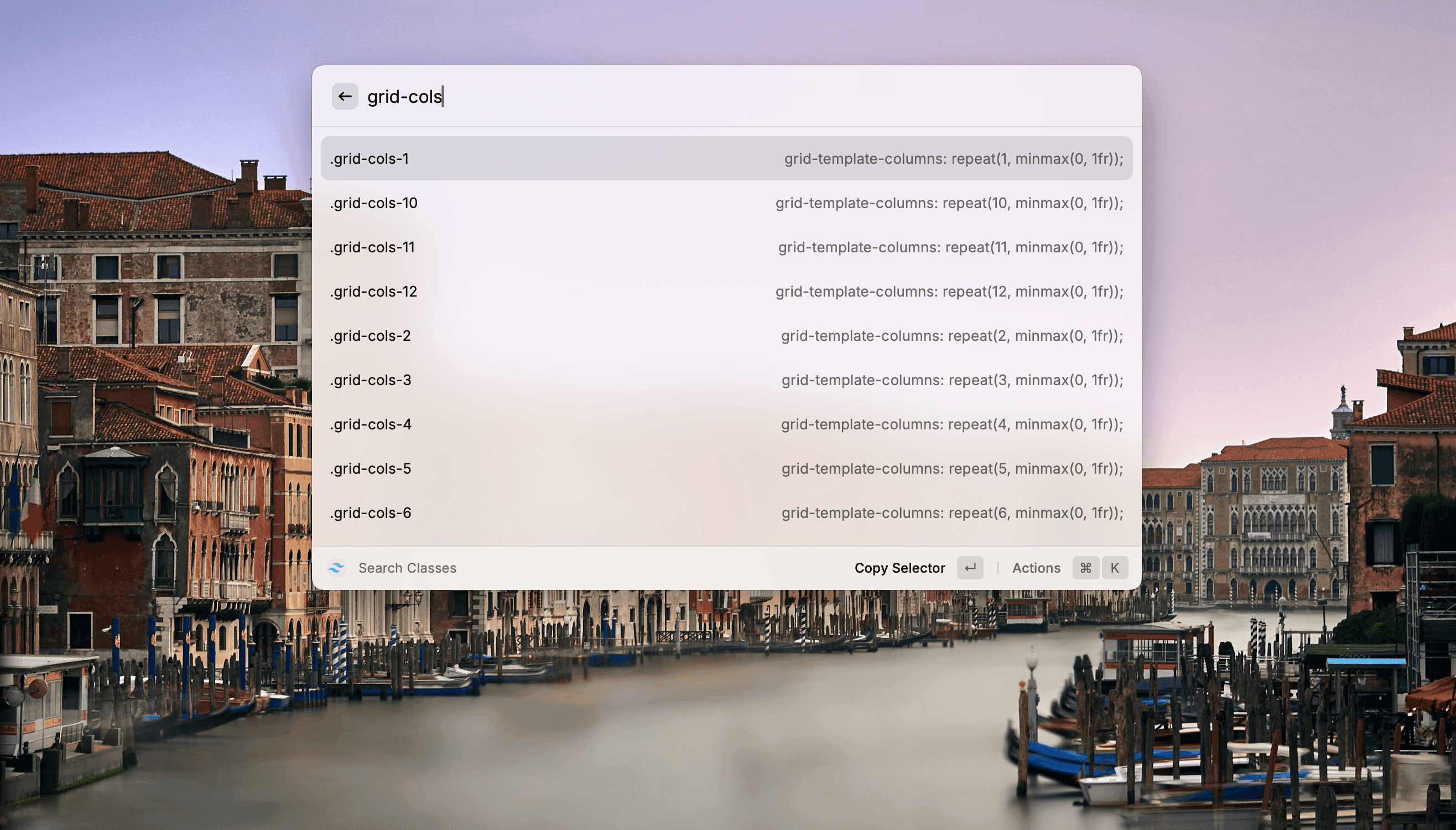
Use Raycast to quickly search Tailwind Classes and Font Awesome Glyph
➡️ Tailwind Extension Link: https://www.raycast.com/vimtor/tailwindcss
➡️ FA Extension Link: https://www.raycast.com/dutzi/font-awesome
Speaking of front-end development resources, two of the documentation sites I often reference and integrated with Raycast are Tailwind CSS and Font Awesome. For Tailwind, You can easily reference class definition, or refer to class name from Tailwind as well as copying the class name. Same for Font Awesome, you can quickly browse and copy glypth for icon font.
Interested? Use my referral link and install Raycast
Raycast is a Mac app, and Windows version has recently released. iOS app offer some of the functionality but not all. Raycast is not supported on Android yet.
Use my referral link and install Raycast: https://www.raycast.com/hey/11fac304